How to Fix Bluetooth Not Connecting to Car: Easy Step-by-Step Guide
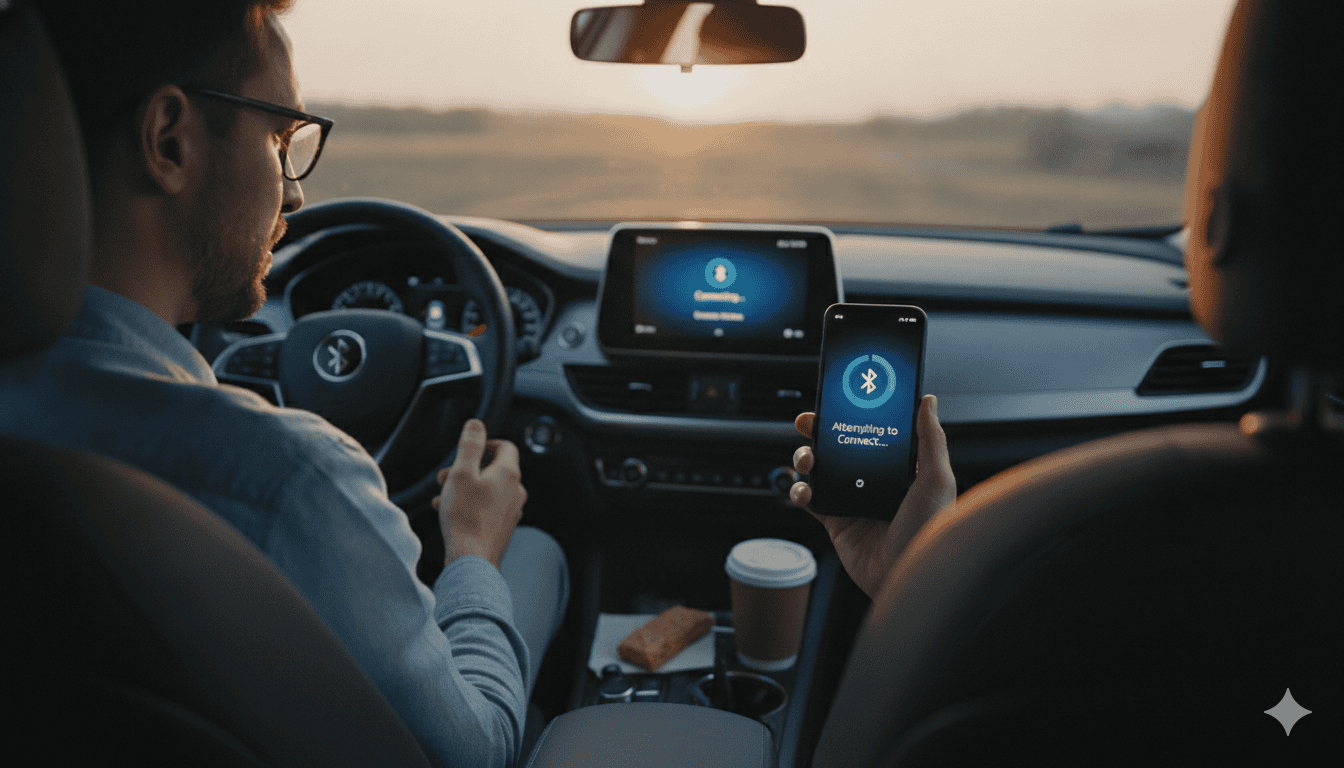
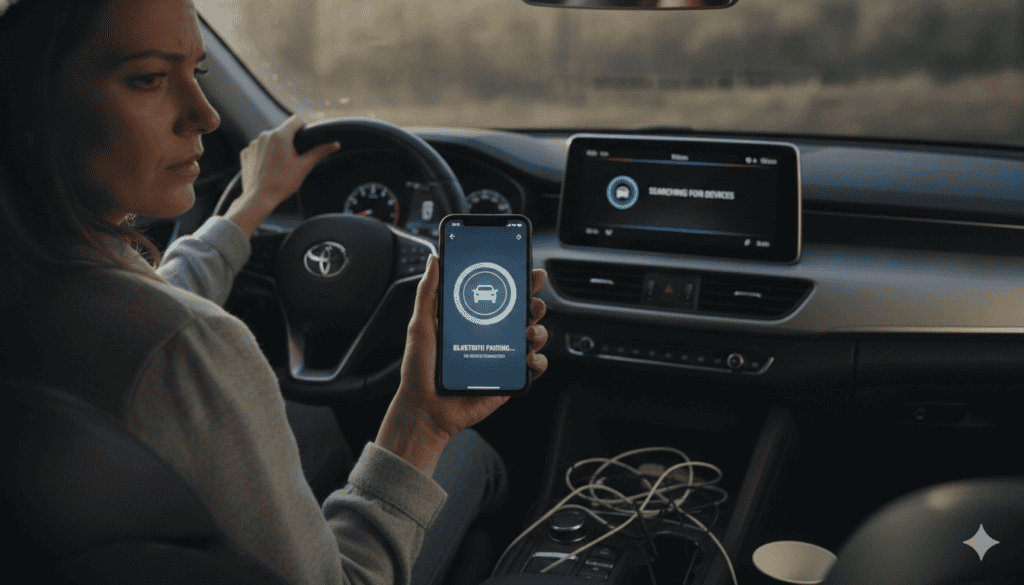
We have all been there before. You get into your vehicle, ready to drive to work or start a fun road trip. You want to listen to your favorite music playlist or an exciting podcast. Suddenly, you realize you have a frustrating problem with Bluetooth Not Connecting to Car systems. Your smartphone screens just spin around and around without pairing up. This issue happens to millions of drivers every single day.
Wireless technology is amazing when it works perfectly, but it can easily glitch out over small digital communication errors. In most normal cases, the problem is just a temporary software hiccup between your mobile device and the vehicle dashboard dashboard. Your phone and your vehicle simply forgot how to talk to each other properly.
Understanding why this digital disconnect happens is the very first step to fixing the wireless link. It usually comes down to old software updates, full device memories, or simple signal interference. Let us dive deep into this common issue and look at the easiest ways to get your favorite driving music playing through your speakers again.
Simple First Steps to Fix Your Car Wireless Link
Before you panic or drive to an expensive mechanic shop, try the easiest solutions first. When you experience bluetooth not connecting to car audio systems, a fast system refresh can save your whole day. Turn your smartphone completely off, wait about ten seconds, and turn it back on. This quick step clears out stuck background apps that might block the wireless signal.
Next, you should turn your automobile completely off and remove the key from the ignition switch. Open and close the driver door to ensure the entire dashboard screen goes dark and shuts down fully. Start the engine back up after a minute to let the vehicle computer boot up fresh.
This dual restart process fixes more than half of all modern wireless pairing issues instantly. It gives both digital devices a clean slate to find each other without any old data getting in the way. Always try this basic trick before changing deeper settings on your dashboard.
Check Your Smartphone Settings and Wireless Visibility
Sometimes the biggest technical problems have the smallest answers hidden inside your settings menu. If you notice bluetooth not connecting to car consoles, look directly at your smartphone screen. Swipe down from the top of your screen to ensure the blue wireless icon is actually glowing and active. It is very easy to accidentally tap the airplane mode button while sliding your phone into a pocket.
You also need to make sure your phone is set to be visible to new nearby devices. Some mobile operating systems automatically hide your wireless signal after a few minutes to protect your privacy. Open your main connectivity menu and stay on that specific screen while your vehicle searches for a signal.
Quick Tip: Keeping the wireless settings screen open on your phone forces the device to broadcast its signal actively.
If your phone is hiding its signal, the vehicle cannot build a secure bridge to share audio. Taking twenty seconds to verify these basic options can solve the headache immediately.
How to Clear Out Old Devices from Your Dashboard
Did you know your vehicle can only remember a limited number of smartphones at one time? When you face bluetooth not connecting to car media systems, your vehicle memory might simply be completely full. Most modern automobiles can only hold five or six unique phone profiles before they stop accepting new ones. If family members or friends have linked their devices in the past, the system clogs up.
Go into your dashboard media menu and look for the list of paired wireless profiles. Delete old phones that you do not use anymore, like past devices or phones belonging to friends. Clearing this digital clutter frees up valuable space for your current smartphone to lock in a clean signal.
| Vehicle Memory Status | Action Required | Expected Result |
| Full (5+ Old Phones) | Delete unused profiles | Frees up system bandwidth |
| Cleared / Empty | Search for current phone | Fast and successful pairing |
Once the old names are gone, your dashboard will have plenty of room to discover your current phone. This easy cleanup project keeps the dashboard computer running much faster overall.
Delete and Repair the Connection for a Fresh Start
If a simple restart does not help, you need to wipe the digital slate completely clean. When you have bluetooth not connecting to car receivers, a fresh pairing relationship is often the best medicine. Open the wireless settings page on your mobile device and find your vehicle’s specific name. Tap the small info icon next to it and select the option to forget this device completely.
Next, do the exact same thing on your vehicle touchscreen menu by deleting your phone name. Now that both systems have forgotten each other, it is time to build a brand new connection. Search for new devices on your phone while your vehicle is in pairing mode.
Select your vehicle name when it pops up on your screen and accept the secure pairing request. This process generates a brand new security key between the two pieces of technology. It completely removes old configuration errors that were blocking your podcasts and phone calls.
Why Updating Your Software Solves Wireless Glitches
Outdated software is a hidden enemy for wireless technology inside modern automobiles. When you struggle with bluetooth not connecting to car entertainment centers, look for pending software updates. Phone companies like Apple and Google release new operating system updates every month to patch bugs. If your phone updates but your vehicle dashboard stays old, they might stop communicating nicely.
Check your smartphone system settings to ensure you are running the newest software version available. You can also visit your local auto dealership website to check for dashboard firmware updates. Many modern vehicles allow you to download updates onto a thumb drive to install via the dashboard port.
Keeping both devices fully updated ensures they speak the exact same digital language. Software updates fix background errors that engineers discovered long after you bought your vehicle. It is a smart way to keep your technology running smoothly for years to come.
Disconnect Other Accessories to Stop Signal Traffic
Our smartphones are incredibly busy devices that connect to many different accessories at the exact same time. If you experience bluetooth not connecting to car systems, your phone might be distracted by other electronics. Smartwatches, fitness bands, and wireless earbuds can hog your phone’s wireless chips. If your phone is busy talking to your wrist, it might ignore your vehicle.
Try turning off the wireless feature on your smartwatch temporarily while you try to pair with the vehicle. You can also move wireless headphones far away from the front seat so they do not interfere.
[Smartwatch Signal] + [Wireless Earbuds] —> Causes Interference —> [Car Connection Drops]
Reducing the number of active wireless signals inside the cabin gives your main connection a clear pathway. Once the vehicle links up successfully, you can usually turn your other favorite accessories back on without issues.
How Smart Low Power Mode Can Block Your Audio
Battery saving modes are wonderful for making your phone charge last through a long workday. However, these power modes can cause bluetooth not connecting to car issues without you knowing it. When your phone drops below twenty percent battery, it automatically limits its wireless transmission power to save energy. This weaker signal has a very hard time reaching the antenna inside your vehicle dashboard.
Plug your smartphone into a physical USB charging cable inside your vehicle to boost its power level. Turn off low power mode or battery saver mode in your main battery settings menu.
Note: Giving your device full battery power allows the internal wireless chips to broadcast at maximum strength.
A strong, unhindered power supply helps the wireless signal cut through any electronic noise inside the cabin. Your music will stream much better when your phone is not starving for electrical energy.
Avoid Common Interference Traps Inside the Cabin
The inside of a modern vehicle is packed with electronic signals that can easily disrupt wireless links. When you are stuck with bluetooth not connecting to car audio, check where you place your phone. Metal objects, change trays, and passenger electronics can block the weak radio waves. If you slide your phone deep into a metal glove box, the signal drops significantly.
Avoid placing your device directly next to aftermarket dashboard cameras or radar detectors, which emit electronic noise. Try using a dashboard mount that keeps your smartphone high up and in open air.
- Keep the phone out of deep metal center consoles.
- Avoid placing devices near radar detectors or dash cams.
- Move passenger phones away from the main dashboard screen.
This open line of sight makes it incredibly easy for the two wireless antennas to share data. It prevents annoying music skipping and dropped hands-free phone calls while you cruise down the highway.
When to Use a Backup Audio Cable for Driving
Sometimes you just need a fast solution when you do not have time to troubleshoot settings. If you are dealing with bluetooth not connecting to car receivers and must hit the road, use a backup cable. Most vehicles built over the last fifteen years have a round auxiliary port or a standard USB port. Plugging a physical cord from your phone into the dash bypasses the wireless system completely.
While a physical wire is not as cool as wireless streaming, it delivers perfect sound quality instantly. It also charges your mobile battery while you listen to music or navigate heavy traffic.
Using a backup wire keeps you safe by preventing you from messing with phone menus while driving. You can always tackle the wireless settings later when you are safely parked at home.
Frequently Asked Questions
Why does my phone say paired but music will not play?
This common issue happens when your phone connects for voice calls but misses the media audio link. Go into your smartphone wireless settings, click your vehicle name, and ensure the media audio toggle switch is turned on.
Can a blown fuse cause wireless pairing problems?
Yes, it can. If your entire dashboard media system refuses to turn on or save settings, a blown electrical fuse might be the cause. Check your owner’s manual to find the specific fuse box location and replace any broken fuses.
Does cold winter weather affect my wireless connection?
Extreme cold can slow down the screen and the computer chips inside your vehicle dashboard. Let your cabin warm up for a few minutes so the electronics can reach normal operating temperatures before pairing.
Why does my wireless connection drop randomly while driving?
Random signal drops are usually caused by local radio interference or a crowded phone memory cache. Clearing out old paired devices and restarting your phone will usually make the connection stable again.
Will resetting my vehicle dashboard delete all my saved radio stations?
A basic system restart will not delete your saved radio stations or navigation settings. However, a full factory master reset will wipe out everything, so use that option only as a last resort.
Why is my new phone not connecting to my older vehicle?
Older vehicles use older wireless protocols that sometimes struggle to understand brand new smartphone chips. Updating your phone software or using a specialized adapter plug can bridge this technology gap easily.
Conclusion: Enjoy Smooth Wireless Driving Every Day
Dealing with bluetooth not connecting to car systems can certainly test your patience, but most fixes take under five minutes. By restarting your devices, clearing old memory slots, and ensuring your software is updated, you can solve almost any connection error. Always remember to keep your phone out of metal compartments to ensure the wireless signal stays strong and clear. Now that you know these simple trade secrets, you can get back to enjoying your favorite audiobooks and music safely.